
How to Do Superscript in Google Docs (2026): Shortcuts, Fixes & Better Tool
Need to create professional superscript text like x², 1ˢᵗ, or H₂O in your documents? Whether you’re writing a research paper, a school assignment, or technical content, knowing how to do superscript in Google Docs is an essential skill.
Superscript in Google Docs refers to the formatting style that makes characters appear slightly above the normal text line. While Google Docs offers built-in ways to create superscript, they come with limitations especially when you need to copy your formatted text to other platforms like emails, websites, or social media.
In this guide, we’ll cover 4 easy methods to create superscript in Google Docs using the Format menu, keyboard shortcuts, equation editor and our superscript & subscript generator. More importantly, we’ll compare each method with a simpler and more reliable alternative: the Superscript Generator. This free online tool creates Unicode-based superscript that works everywhere, without losing formatting when copied.
By the end, you’ll know exactly when to use Google Docs’ native tools and when to switch to a dedicated generator for better compatibility and ease. Let’s get started.
What Is Superscript in Google Docs?
Superscript is text that appears slightly above the normal text line. In Google Docs, superscript is mainly used for:
- Exponents (x², 10³)
- Ordinal numbers (1ˢᵗ, 2ⁿᵈ)
- Footnotes and references
- Scientific and academic notation
Google Docs provides a built-in superscript feature, but it has limitations, especially when copying text to websites, emails, or social media.
👉 For a deeper explanation with examples and Unicode use cases, read our detailed guide: What is Superscript?
How to Do Superscript in Google Docs (Step-by-Step)
This is the most searched question: how to superscript in Google Docs. In this section, we’ll cover four practical methods to add superscript directly in Google Docs. You’ll learn the official menu approach, time-saving shortcuts, the equation editor for complex formulas, and finally, the most reliable solution that works both inside and outside Google Docs. By the end, you’ll be able to add perfect superscript to Google Docs and even on any document and know exactly which method to use for each situation.
Method 1: Using the Format Menu
This is the official, click-based method that Google Docs provides in its interface. It’s perfect for beginners or anyone who prefers navigating menus over memorizing shortcuts.
How it works in Google Docs:
- Select the text you want to format (like the “2” in “x2”)
- Click Format in the top menu bar
- Go to Text in the dropdown menu
- Click Superscript
Your text now appears correctly formatted as superscript in your Google Doc.
What this means for your document:
The limitation you’ll notice:
This formatting only works inside Google Docs. If you try to copy “x²” from your document and paste it into an email, website, or social media platform, it will revert to plain “x2.” The formatting doesn’t travel with your text.
Method 2: Superscript Shortcut in Google Docs
When you need to work faster, keyboard shortcuts turn superscript formatting into a quick key combination. This method is ideal for students, researchers, or anyone who formats text frequently.
How it works in Google Docs:
- Select the text you want to superscript
- Press these keys together:
- Windows/Chromebook: Ctrl + . (Control and Period)
- Mac:
Cmd +. (Command and Period)
- Press the same shortcut again to remove superscript formatting
What this means for your workflow:
The same wall you’ll hit:
Like Method 1, this creates visual formatting that’s tied to Google Docs. Your beautifully formatted “E=mc²” will lose its superscript if you copy it to Microsoft Word, a website, or any platform outside Google Docs.
👉 That’s why many users prefer generating Unicode superscripts directly using our Superscript Generator.
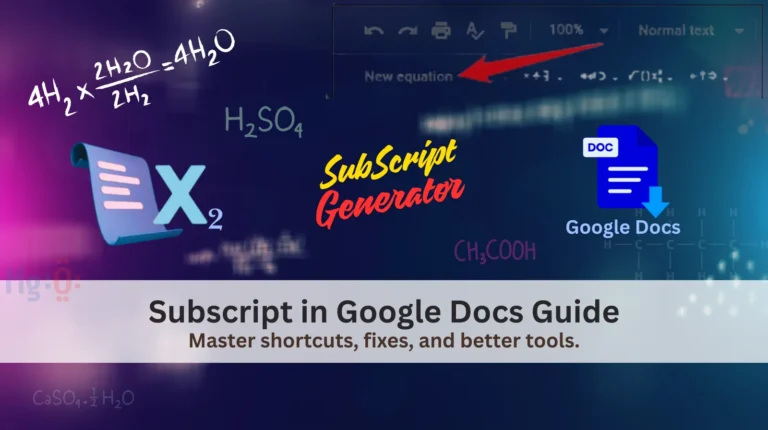
Method 3: Using the Equation Tool
For mathematical and scientific writing, Google Docs includes a specialized Equation Editor. This tool handles complex expressions, multi-level exponents, and professional mathematical notation.
How it works in Google Docs:
- Click Insert → Equation from the menu
- An equation toolbar and input box will appear
- Type your expression using the caret symbol (
^) for superscript- Example: Type
x^2then pressSpaceto get x²
- Example: Type
- The formatted equation integrates into your document
What this means for technical documents:
The boundaries you’ll encounter:
Equations live in separate boxes within your document and don’t blend seamlessly with regular text. More importantly, they share the same portability problem you can’t copy a formatted equation from Google Docs and paste it elsewhere with formatting intact.
Pro Tip
You may also want to check our step-by-step guide on how to use subscript in Google Docs if you need raised text formatting alongside subscripts in the same document.
Method 4: Creating Portable Superscript with Our Generator
This method solves the fundamental limitation of all Google Docs formatting: portability. Instead of relying on Google Docs’ visual formatting, you create real Unicode superscript characters that work everywhere.
How it works with Google Docs:
- Visit our Superscript & Subscript Generator
- Type your text normally (like “x2” or “1st”)
- Click Convert to Superscript
- Copy the result (like “x²” or “1ˢᵗ”)
- Paste it directly into your Google Doc
What this means for your documents:
The breakthrough difference:
These aren’t Google Docs formatting commands they’re actual characters (², ³, ˢᵗ, ᵀᴹ) that every computer and platform recognizes. The “x²” you paste into Google Docs today will still be “x²” when you copy it tomorrow to your website, email, research paper, or social media post.
Why this matters for Google Docs users:
You can now create superscript in Google Docs that doesn’t trap your content. Write once, use everywhere. Whether you’re preparing a document that needs to be shared across platforms, or you simply want formatting that won’t disappear when you copy text, this method ensures your superscript always travels with your words.
👉 That’s why many users prefer generating Unicode superscripts directly using our Superscript Generator.
How to Make Exponents in Google Docs
Exponents are one of the most common uses of superscript.
Example:
- Type: x2
- Select 2
- Apply Format → Text → Superscript
- Result: x²
This works visually inside Google Docs. However:
- Exponents may lose formatting when copied to other platforms
- Google Docs exponents are style-based, not character-based
If you want true Unicode exponents that work everywhere (Docs, Word, HTML, social media), generating them externally is the safer option. For a deep dive on why Unicode is the reliable standard, see our guide on Unicode Superscript & Subscript.
👉 You can instantly generate x², x³, 10⁴, etc., using our Superscript Generator, then paste them anywhere without formatting issues.
How to Insert Superscript in Google Docs (All Methods Compared)
Superscript in Google Docs can be added in multiple ways, depending on whether you prefer menu options, keyboard shortcuts, or built-in tools. Each method works differently and has its own limitations, especially when copying text outside Docs.
| Method | Easy | Unicode | Copy-Safe |
|---|---|---|---|
| Format menu | ✔ | ❌ | ❌ |
| Keyboard shortcut | ✔✔ | ❌ | ❌ |
| Equation editor | ❌ | ❌ | ❌ |
| Superscript Generator | ✔✔✔ | ✔ | ✔✔✔ |
This comparison shows why many users move away from native Docs formatting and rely on a generator for consistent results. Although our guide covers every detail, for official troubleshooting steps or additional details from Google, you can also consult the support thread on how to make a superscript in Google Docs.
Common Problems with Superscript in Google Docs
1. Superscript Breaks When Copying
Formatting is lost when pasting into:
- Gmail
- WordPress
- HTML editors
- Social media
Real Example: You write E=mc² in Google Docs using the Format menu. It looks perfect. But when you copy it into your WordPress blog or a Twitter bio, it reverts to E=mc2. All formatting is lost.
2. Impossible to Use in Digital Bios & Social Media
Google Docs formatting does not convert to Unicode characters, making it useless for:
- Social media handles (
@User¹²³) - Website footers or badges
- Email signatures
- Online profiles
3. Hard to Remove Superscript Formatting
Users often search “how to get out of superscript in Google Docs” because the formatting sticks and affects subsequent text.
All these problems disappear when you use Unicode superscript characters generated outside Docs.
👉 This is where our Superscript Generator becomes the easiest solution.
Why Use a Superscript Generator Instead of other methods of Google Docs?
After learning how to do superscript on Google Docs, many users realize it’s not ideal for everyday digital use.
Benefits Checklist:
Generate Copy-Paste Superscript Text Now →
Instead of formatting text repeatedly, you generate superscript once and use it everywhere.
Superscript in Google Docs vs Superscript Generator (Quick Comparison)
Google Docs Superscript
- Good for simple documents
- Formatting-based
- Limited portability
- Platform-dependent
Superscript Generator
- Unicode-based
- Platform-independent
- Ideal for web, SEO, science, and education
- Faster for frequent use
For users who regularly deal with exponents, references, or technical text, a superscript maker is clearly the better option.
👉If you’re working with technical documents, you may also find our guide on superscript and subscript in LaTeX helpful for precise mathematical and scientific formatting.
When Should You Use Google Docs Superscript?
Use Google Docs superscript if:
- You’re writing a short document that stays in Google Docs
- You don’t need to copy text elsewhere
- Formatting consistency outside Docs is not important
For everything else, generating superscript characters directly saves time and avoids errors.
👉 Learn more about proper superscript usage and examples in our main guide: What is Superscript?
Your Quick Decision Guide
Need superscript just for a Google Doc you’re printing?
→ Use Format > Text > Superscript
Need superscript for a website, email, social media, or any text you’ll copy elsewhere?
→ Use the Superscript Generator
Frequently Asked Questions
Final Thoughts
Learning how to superscript in Google Docs is useful but it’s only part of the solution. Google Docs uses visual formatting, not true superscript characters. For reliable, copy-safe, and universal use, a dedicated Superscript Generator is the smarter and easier choice.
If you frequently work with:
- Exponents and mathematical notation
- Academic or research content
- Scientific formulas
- Web content or social media text
You’ll save time and avoid formatting issues by generating Unicode superscripts directly.
👉 If instead of Google Docs you’re working in Microsoft Word, our complete guide on how to add superscript in Word walks you through every method step by step.
Ready to Use Superscript the Right Way?
Now that you understand how superscript works in Google Docs and where its limits appear the next step is using a method that stays consistent everywhere. Use the Superscript Generator by clicking on below button: