
Subscript in Word: How to Add, Type, and Use Subscripts in Microsoft Word (All Methods)
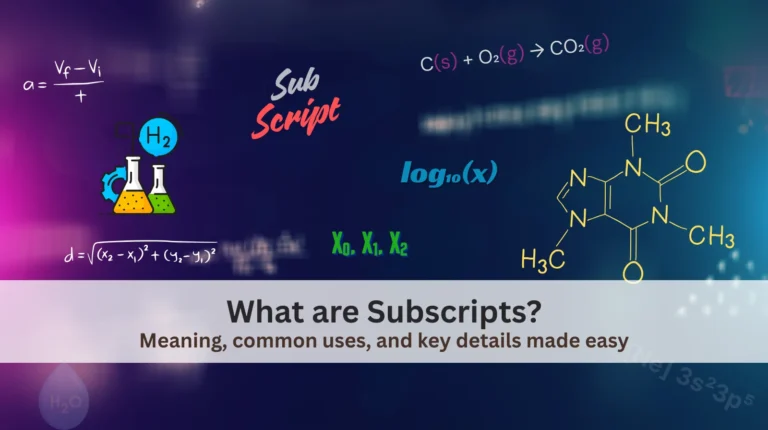
Subscript in Word is a text formatting style that places characters slightly below the normal text line, usually in a smaller size. Subscripts are commonly used in chemical formulas (H₂O), mathematics, scientific notation, footnotes, and technical documents.
But have you noticed that perfectly formatted H₂O in Word often becomes H2O when you copy it to an email or website? This common frustration has a simple solution.
If you’ve ever wondered how to add subscript in Word, how to type a subscript in Word, or how to use superscript and subscript together, this guide covers every working method step by step. For related formatting guides, see our tutorials on Superscript in Word and Subscript in Excel.
This tutorial works for all versions of Microsoft Word, including Word for Windows, Word for Mac, and Microsoft 365.
What Is Subscript in Microsoft Word?
A subscript is a character (number, letter, or symbol) that appears slightly below the baseline of regular text. In Microsoft Word, subscript formatting is built into the Font tools and can be applied instantly using menu options or keyboard shortcuts.
Common examples of subscripts:
- H₂O (chemical formula for water)
- CO₂ (carbon dioxide)
- x₁, x₂ (mathematical variables)
- Footnote references
- Scientific and academic writing notation
What You’ll Learn in This Guide
By the end of this article, you’ll know:
- How to add subscript in Word using the Home tab
- How to type a subscript in Word using keyboard shortcuts
- How to insert subscript using the Font dialog box
- How to write superscript and subscript in Word together
- How to remove or turn off subscript formatting
- When native Word formatting fails — and a better alternative
Method 1: Add Subscript in Word Using the Home Tab
This is the most common method and works for beginners.
Steps:
- Open your document in Microsoft Word
- Select the text you want to format as subscript
(or place your cursor where you want to type subscript) - Go to the Home tab
- In the Font group, click the Subscript (X₂) icon
Your selected text will instantly become subscript.
👉 Click the same button again to turn subscript off.
Pros & Cons:
Method 2: Keyboard Shortcut to Type Subscript in Word
If you want speed, this is the fastest way.
Subscript shortcut in Word:
- Windows:
Ctrl + = - Mac:
Command + =
How it works:
- Select the text (or place the cursor)
- Press the shortcut
- Start typing your subscript
- Press the shortcut again to return to normal text
This method is ideal when typing chemical formulas or equations continuously. For a practical tip from the student community, this Reddit thread shares a quick keyboard method for how to add subscript in Word that many engineering students rely on.
Pros & Cons:
👉 Switching between Microsoft Word and Google Docs? Use our complete tutorials for superscript google docs and subscript Google Docs to keep your formatting consistent everywhere.
Method 3: Insert Subscript Using the Font Dialog Box
This method gives more control and is useful when formatting longer text.
Steps:
- Select the text you want as subscript
- Go to Home → Font group
- Click the small arrow icon (Font dialog launcher)
- Under Effects, check Subscript
- Click OK
You’ll see a preview before applying the change.
Pros & Cons:
How to Write Superscript and Subscript in Word Together
Many users search for how to add superscript and subscript in Word — especially for formulas, exponents, or academic writing.
Example:x² + H₂O
How to do it:
- Use Superscript (X²) for exponents
- Use Subscript (X₂) for chemical or indexed text
- Toggle each option on and off as needed
Word allows both formats in the same line without issues. If you’re working with scientific or mathematical documents, you may also find our guide on LaTeX superscript and subscript useful, where we explain precise formatting methods used in LaTeX for equations, formulas, and technical writing.
Method 4: Type Subscript in Word Using a Generator (Best for Consistency)
Real Impact: You write a chemistry report with CO₂ formulas in Word. It looks perfect. When you copy it to your WordPress lab journal or email it to colleagues, all subscripts disappear—making your scientific data inaccurate.
While Word’s native subscript works visually, it often breaks when copied into:
- Websites
- Google Docs
- Emails
- CMS platforms
- Social media
Before/After Comparison:
Before (Word Formatting):
Type H2O → Format as subscript → Looks like H₂O in Word → Copy to email → Becomes H2O ❌
After (Unicode Generator):
Type H2O in generator → Get H₂O → Paste into Word → Copy anywhere → Still H₂O ✅
Better Solution:
Use a Unicode Subscript Generator that creates real subscript characters, not just formatting.
Why this method is better:
✅ Universal Compatibility:
- All Word Versions – Windows, Mac, Office 365
- Other Office Apps – Excel, PowerPoint, Outlook
- Google Suite – Docs, Sheets, Gmail
- Web & Publishing – WordPress, HTML, PDFs
- One Creation, Forever Use – Never reformat again
✅ Subscripts remain intact everywhere
✅ No formatting loss
✅ Works across Word, Docs, HTML, and apps
✅ Ideal for publishing and SEO content
Word’s subscript is like temporary ink. It looks good on the page but washes off when you try to move it. Unicode subscript is permanently engraved into each character.
If you regularly write technical content, this is the most reliable method.
Create Permanent Subscript Now →
How to Remove or Turn Off Subscript in Word
If you’re stuck typing in subscript mode:
Fix it instantly:
- Select the subscript text
- Click the Subscript (X₂) button again
OR - Press the keyboard shortcut (
Ctrl + =orCommand + =)
This restores normal text formatting.
Common Uses of Subscript in Word
- Chemical Formulas:
- H₂O
- CO₂
- NaCl
- Mathematics:
- x₁, x₂, x₃
- Logarithmic bases
- Scientific Writing:
- Variables
- Atomic numbers
- Indexed data
- Academic Documents:
- Footnotes
- References
- Equations
Subscript in Word vs Unicode Subscript (Important Difference)
| Feature | Word Subscript | Unicode Subscript |
|---|---|---|
| Looks correct in Word | ✅ | ✅ |
| Works outside Word | ❌ | ✅ |
| Copy-paste safe | ❌ | ✅ |
| Best for web & SEO | ❌ | ✅ |
| Permanence | ❌ (breaks) | ✅ (forever) |
👉 This is why many professionals move away from native Word formatting and rely on a subscript generator for consistent results.
Frequently Asked Questions
Conclusion: Best Way to Add Subscript in Word
Microsoft Word provides multiple ways to add subscripts — from the Home tab to keyboard shortcuts. These methods work well for basic documents.
Stop reformatting every time you copy. Create permanent subscript once with our generator, use it everywhere forever.
Choose Your Method:
- For Word-only print documents: Use
Ctrl + =(Windows) orCommand + =(Mac) - For text that travels anywhere: Use the Subscript Generator
However, if you want perfect consistency, easy copy-paste, and cross-platform compatibility, using a Unicode subscript generator is the smartest choice.
Create Permanent Subscript Now →
Related Guides You Might Find Helpful:
- Superscript in Word
- Superscript in Google Docs
- Subscript in Google Docs
- Complete Superscript & Subscript Guide
Now that you’ve mastered subscript in Word, put your knowledge into practice by formatting your next document with confidence, whether using Word’s built-in tools or generating portable Unicode characters.