Superscript in Word: How to Add, Type & Use Superscript (All Methods Explained)
Superscript in Word is used to display small characters slightly above normal text, commonly for exponents (x²), ordinal numbers (1ˢᵗ), chemical formulas, footnotes, and trademark symbols. Microsoft Word makes it easier than Excel but many users still search for shortcuts, Mac methods, and better ways to keep superscript when copying text elsewhere.
But what happens when you copy that perfectly formatted x² or 1ˢᵗ from Word to an email, website, or social media? Too often, it reverts to x2 or 1st, losing all formatting.
In this complete guide, you’ll learn how to add superscript in Word using every possible method: ribbon buttons, keyboard shortcuts, font settings, symbols, and equation tools. More importantly, you’ll discover why Word superscript often breaks when copied and how using a Unicode Superscript Generator solves that problem permanently.
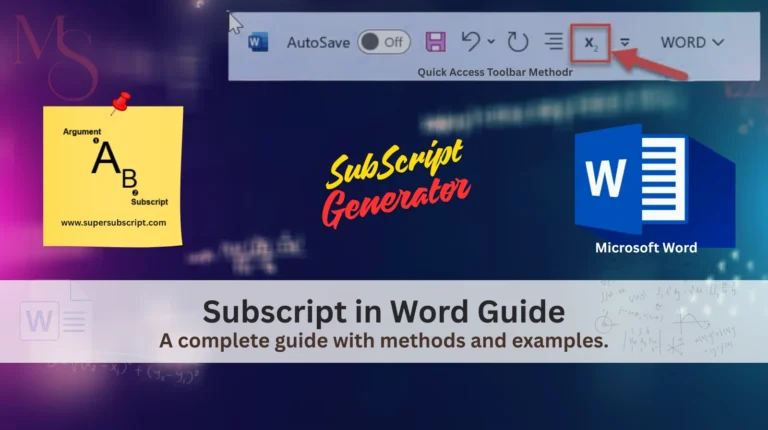
👉 For related formatting guides, see our tutorials on Subscript in Word and Superscript in Excel.
What Is Superscript in Word?
A superscript is a smaller number, letter, or symbol positioned above the baseline of normal text.
- Common examples include:
- x² (mathematics / exponents)
- 1ˢᵗ, 2ⁿᵈ, 3ʳᵈ (ordinal numbers / suffixes)
- m², cm³ (units)
- ®, ™ (trademark symbols)
In Microsoft Word, superscript is applied as text formatting, meaning it changes appearance, but not the underlying character.
Important Reality
Word’s superscript is like temporary makeup. It looks good in Word but washes off when you take your text anywhere else. This matters when copying text to emails, websites, or other apps.
👉 Need to format text in your presentations? Our complete guide covers all the best methods to add superscript in PowerPoint with shortcuts and tips.
Superscript in Word: What You’ll Learn in This Guide
By the end of this article, you’ll know:
- How to superscript in Word (Windows & Mac)
- All Word superscript shortcuts
- How to type suffixes like 1ˢᵗ, 2ⁿᵈ, 3ʳᵈ
- How to insert exponents and small numbers
- How to remove superscript formatting
- Why Word superscript disappears when copied
- When a Superscript Generator is the better option
👉 Switching between Word and Google Docs? Use our complete tutorials for superscript in Google Docs and subscript in Google Docs to keep your formatting consistent everywhere.
How to Add Superscript in Word (Home Tab Method)
This is the most common and beginner-friendly way to insert superscript in Microsoft Word.
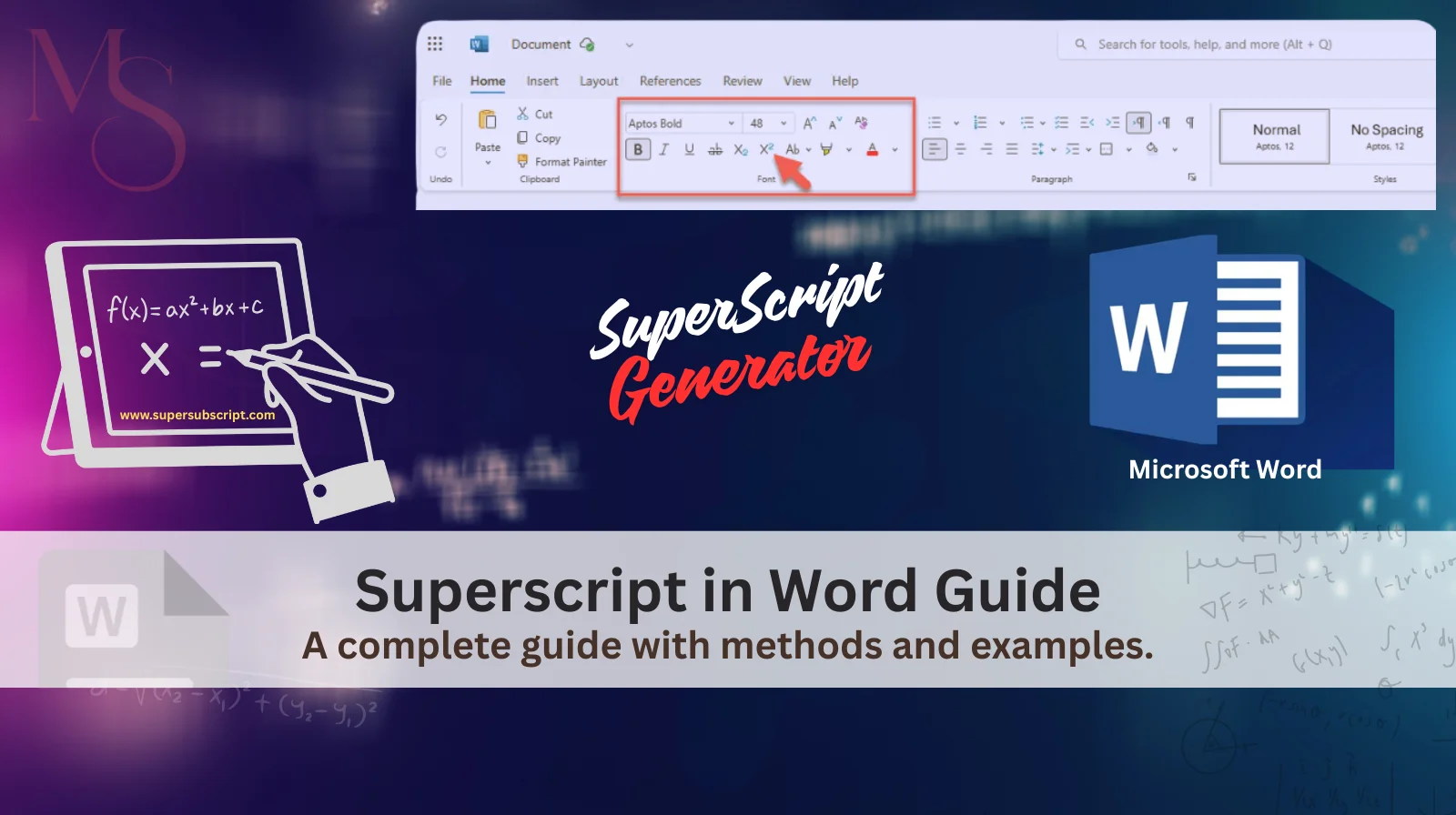
Method 1: Using the Home Ribbon
Steps:
- Select the text you want to superscript
- Go to the Home tab
- In the Font group, click the Superscript (x²) icon
- Type or continue editing
- Click the icon again to turn it off
Pros & Cons:
Superscript Shortcut in Word (Fastest Method)
If you want to work faster, Word includes a built-in keyboard shortcut.
Method 2: Word Superscript Keyboard Shortcut
Shortcut:
- Windows:
Ctrl + Shift + = - Mac:
⌘ + Shift + =
How it works:
- Select text
- Press shortcut → superscript applied
- Press again to turn it off
Pros & Cons:
👉 For text that needs to work everywhere, consider generating Unicode superscripts instead.
How to Insert Superscript Using Font Settings
This method gives you more control and is useful when shortcuts don’t work.
Method 3: Font Dialog Box
Steps:
- Select the text
- Open Font settings
- Windows:
Ctrl + D - Mac:
⌘ + D
- Windows:
- Check Superscript
- Click OK
Pros & Cons:
How to Insert Superscript Symbols in Word
Some superscripts—like ®, ™, or ©—are symbols, not numbers.
Method 4: Insert Symbol
Steps:
- Place cursor where needed
- Go to Insert → Symbol → More Symbols
- Choose the symbol
- Click Insert
Pros & Cons:
How to Type Exponents in Word
Exponents are one of the most common uses of superscript.
Example:
- Type: x2
- Select 2
- Apply superscript
- Result: x²
You can also use Insert → Equation for complex math, but equations behave as objects not text. If you want to learn more about superscript formatting for math equations in Word check out this detailed explanation.
How to Remove Superscript in Word
Many users search “how to get out of superscript in Word”.
To remove superscript:
- Select the text
- Press
Ctrl + Spacebar(Windows) or⌘ + Spacebar(Mac) - Or toggle the superscript button off
Common Uses of Superscript in Word
Superscript is used across many fields:
- Ordinal numbers: 1ˢᵗ, 2ⁿᵈ, 3ʳᵈ
- Mathematics: x², y³
- Science: charges, isotopes
- Units: m², cm³
- Footnotes & endnotes
- Trademark symbols: ® ™
Why Superscript Breaks When Copying from Word
This is where most users get frustrated.
Real Impact: You write a research paper with chemical formulas (H₂O). It looks perfect in Word. When you copy it to your WordPress blog or email it to your professor, all subscripts disappear, making your work scientifically inaccurate.
Problem:
Superscript created in Word often disappears when pasted into:
- Emails (Gmail, Outlook)
- Websites
- WordPress
- Social media
Reason:
Word uses formatting, not real superscript characters. Word paints superscript onto your text like temporary ink. Unicode superscript is tattooed into the characters. One washes off; the other stays forever.
Generate Permanent Superscript Now →
Best Alternative: Unicode Superscript Generator (Recommended)
A Superscript Generator creates real Unicode superscript characters, not just visual formatting.
Before/After Comparison:
- Before (Word Formatting):
- Type
x2→ Apply superscript → Looks likex²in Word → Copy to email → Becomesx2❌
- Type
- After (Unicode Superscript Generator):
- Type
x^2in generator → Getx²→ Paste into Word → Copy anywhere → Stillx²✅
- Type
Why This Is Better Than Word Superscript:
- Universal Compatibility:
- All Word Versions – 2010, 2016, 2019, 365, Mac
- Other Office Apps – Excel, PowerPoint, Outlook
- Google Suite – Docs, Sheets, Gmail
- Web & Social Media – WordPress, HTML, Twitter, Instagram
- One Creation, Forever Use – Never format again
- Copy-paste safe – Works in Word, Docs, Excel, HTML, emails, social media
- No formatting loss – Characters stay perfect forever
- Faster for frequent use – Generate once, use everywhere
👉 Use the Superscript Generator to generate characters like ² ³ ⁿ ˢᵗ and paste them anywhere. Write once. Use everywhere.
Microsoft Word Superscript vs Superscript Generator
| Feature | Word Superscript | Superscript Generator |
|---|---|---|
| Formatting-based | ✅ | ❌ |
| Unicode characters | ❌ | ✅ |
| Copy-safe | ❌ | ✅ |
| Works everywhere | ❌ | ✅ |
| Best for web & SEO | ❌ | ✅ |
| Portability | ❌ | ✅ |
Frequently Asked Questions
Final Thoughts & Next Steps
Microsoft Word makes it easy to format superscript, but formatting is fragile. If your content stays inside Word, built-in methods are fine. But if you copy text across platforms, formatting breaks.
Stop losing your formatting every time you copy text. Create permanent superscript once with our generator, use it everywhere forever.
Choose based on your needs:
- For Word-only documents: Use
Ctrl + Shift + = - For text used anywhere else: Use the Superscript Generator
For reliable, future-proof superscript, Unicode characters are the best solution.
Create Permanent Superscript Now →
Continue Learning: Master both formatting styles with our Complete Superscript & Subscript Guide or explore Subscript in Excel for related spreadsheet formatting.